
3D mockups
A 3D mockup puts your artwork on a real product, such as a t-shirt, a mug, a laptop or a phone. You can turn the model, change its color and adjust its lighting.
Add a model
- Click Elements in the toolbar.
- Find 3D Mockup Models, or click View all next to it.
- Double-click a model.
Rest your pointer on a model for a moment to see who made it and its print shape.
The model is added as a layer in the middle of the canvas. A selected model has three tabs: Basic Properties, 3D Model Properties and 3D Model Mockup.
Put your design on the model
The design you place must be in your Uploads gallery first, so export or upload it there before you start.
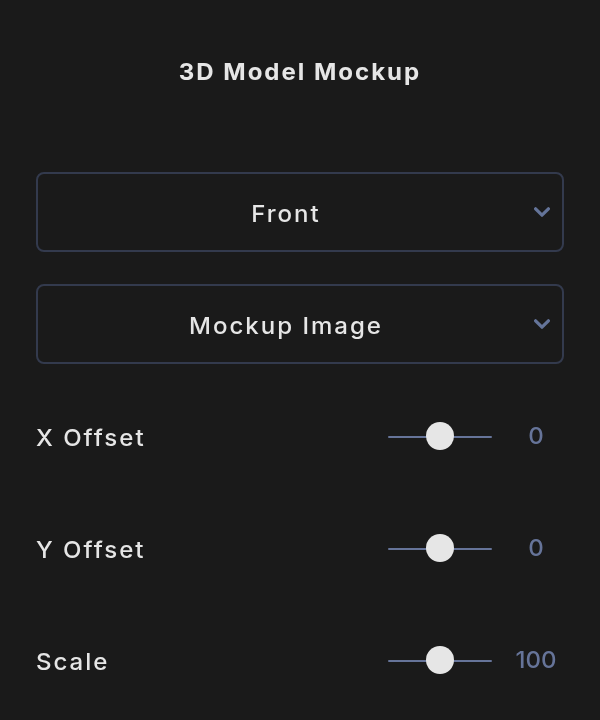
- Open 3D Model Mockup.
- In the first menu, choose the mockup area, such as Front. Some models have more than one.
- In Mockup Image, choose one of your uploads. It is wrapped onto that area.
- Use X Offset and Y Offset to move the print, and Scale to size it, from 1 to 200.
Each print area keeps its own image and settings. To take a mockup off, click Remove Mockup.
If you have no uploads yet, the menu says No uploaded images yet.
Turn and recolor the model
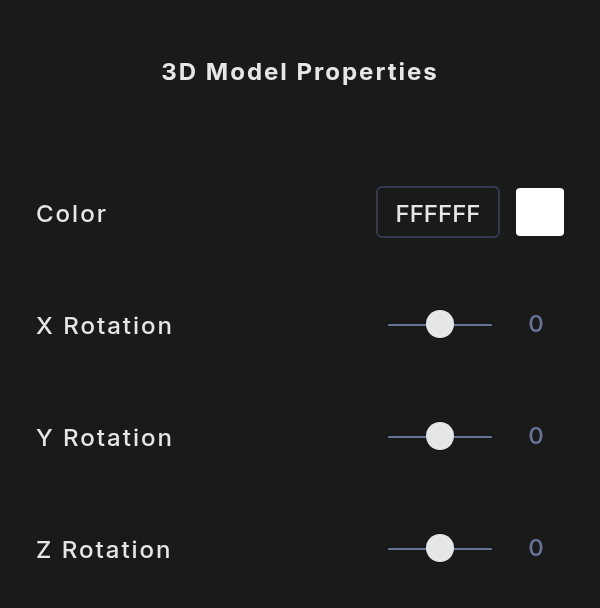
- Color: the color of the product, such as the fabric of a shirt.
- X Rotation, Y Rotation and Z Rotation: turn the model from -180 to 180 degrees on each axis.
The settings in Basic properties, such as size, position and opacity, apply to the model's layer as a whole.
Adjust lighting with 3D environment
Models are lit by the 3D environment. To change it, switch the view to 3D above the canvas and clear your selection. The panel shows 3D Environment, with four lighting setups and controls for Filmic Color, Background Blur, Rotation and Exposure. See Zoom, 2D and 3D view.
In 2D view the environment background is hidden, but it still lights your models.
Export a mockup
Export as usual from the Save menu. Your 3D mockups are included in the image, and in 3D view the environment becomes the background. See Export.