
Patterns
The Patterns menu holds a library of motifs, from shapes and animals to sports and seasons. Each one becomes a repeating pattern that fills your whole canvas, which you can then restyle.
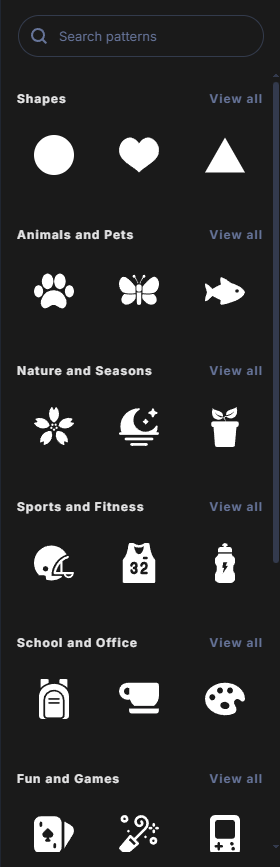
Browse patterns
Click Patterns in the toolbar. The menu shows each category with a few patterns.
- Click View all next to a category to see every pattern in it. More load as you scroll.
- Click Go back to return to the overview.
Search patterns
- Type at least two letters in Search patterns.
- Pick a suggestion, or press Enter to use the first one.
- Click the × to clear the search and show every category again.
If you search while a category is open, only that category is searched. A word that is not in the pattern library shows No patterns found.
Add a pattern
Double-click a pattern. It is added as a new layer called Pattern at the top of your layer list and is selected straight away.
What a pattern layer is
- A pattern always covers the whole canvas and refits when you change the canvas size.
- You move it in whole tiles with X-axis and Y-axis, in Pattern properties not by dragging.
- It has no handles on the canvas. Select it from the Layers menu.
To change its color, tile size, spacing, spin, layout, and preset, see Pattern properties.