
Image properties
Photos, uploads and graphics are image layers. A selected image has three tabs: Basic Properties, Image Color and Image Style. See Basic properties for the first one.
Image Color
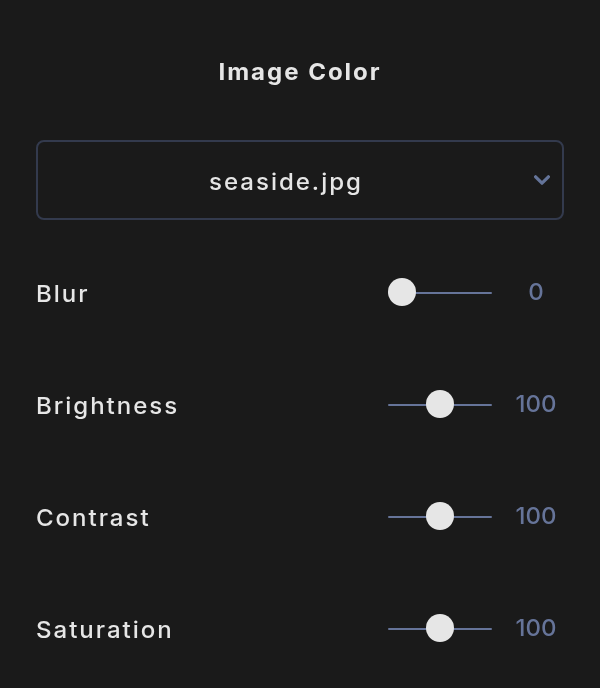
- Image button: shows the image's name. Click it to swap the picture. See below.
- Blur: 0 to 100.
- Brightness: 0 to 200. 100 is the original.
- Contrast: 0 to 200. 100 is the original.
- Saturation: 0 to 200. 100 is the original, 0 is black and white.
Swap the picture
- Click the image button at the top of Image Color. It reads Select a new image, and the Uploads menu opens.
- Click a picture in your Uploads gallery, or click another image layer on the canvas to copy its picture.
The layer keeps its exact size and position. The new picture is cropped to fill the frame, and all your adjustments stay. A swap is one undo step. Press Escape to cancel.
Image Style
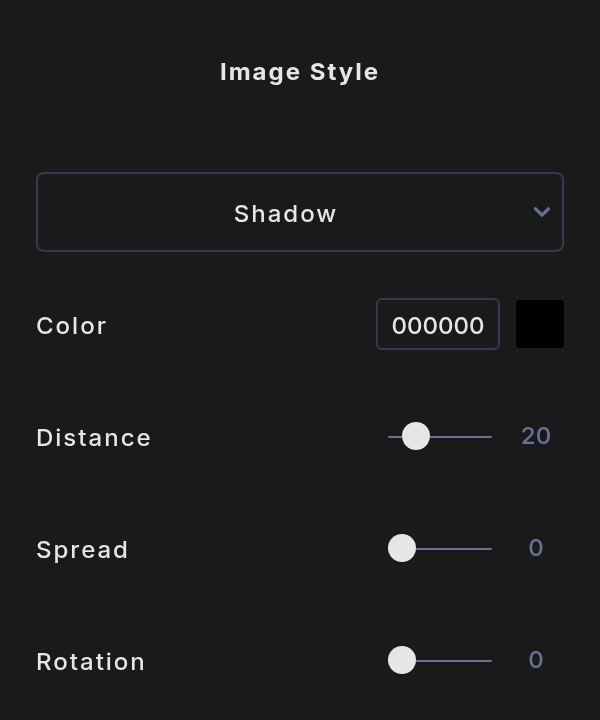
Pick a style in Choose a Style. An image has one style at a time, and Remove takes it off.
- Outline: a frame around the image. Set its Color and Size, from 1 to 30. The frame is rectangular, even on a picture with a transparent background.
- Glow: a soft light around the image. Set its Color and Spread, from 0 to 100. On a picture with a transparent background the glow follows its outline.
- Shadow: set its Color, Distance, Spread and Rotation. At a rotation of 0 the shadow falls straight down.
Remove the background
- Right-click a single image on the canvas.
- Point to Remove background.
- Choose Soft edge or Hard edge.
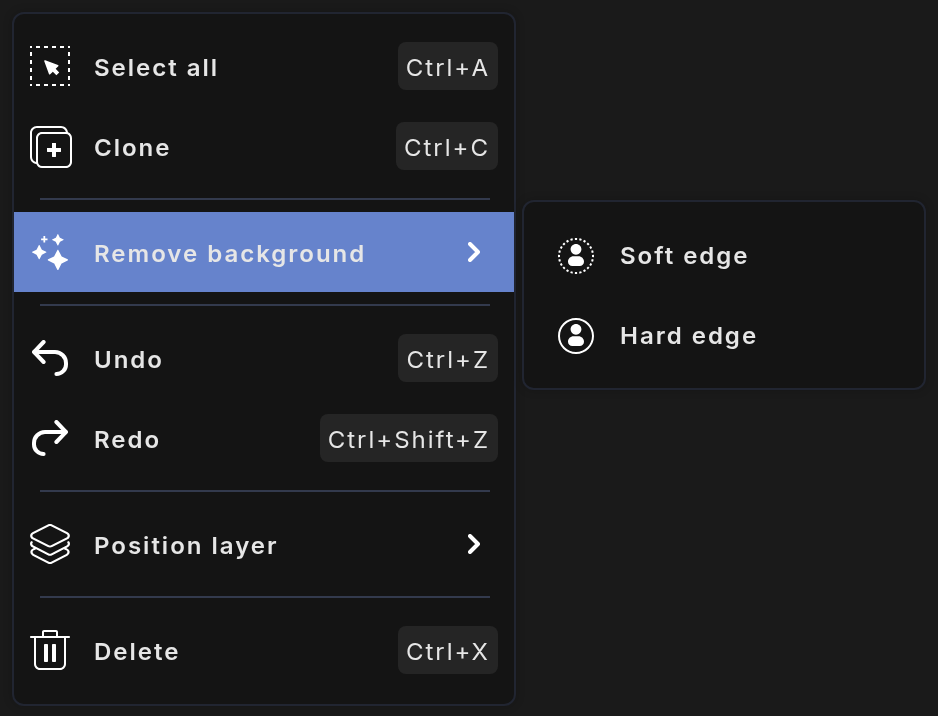
- Soft edge gives a finer edge, good for hair, fur and see-through things.
- Hard edge gives a sharper, more solid cut.
The result replaces the picture in the same layer. It is one undo step, so undo brings the original back. It works on uploads, stock photos and graphics.
Removing a background uses AI credits. Your balance is in Settings under AI Credits. See Plans and AI credits.
Mask an image into a shape
Put the image directly above a shape in the Layers menu and click the image's mask button. The image then shows only inside the shape, and keeps its own position, rotation, flip, filters and style. The shape is only the container: flipping or rotating it does not move the image inside.