
Zoom, 2D and 3D view
The controls for how you see your canvas sit above it: the zoom controls in the center and the 2D / 3D switch on the right. Zooming only changes your view. It never changes the size of your design or your export.
Zoom
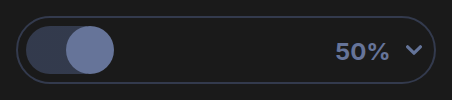
- Slider: drag it to zoom between 20% and 200%.
- Percent menu: click the percentage to pick 20%, 35%, 50%, 75%, 100%, 125%, 150% or 200%.
- Mouse wheel or trackpad: hold the zoom key and scroll, or pinch on a trackpad. Each step zooms by 2%, toward the spot under your pointer. The zoom key is in Keyboard shortcuts.
The studio always opens at 50%.
Move around the canvas
When the zoomed canvas is bigger than the work area, scrollbars appear. Scroll with the mouse wheel, or drag the scrollbars.
2D and 3D view
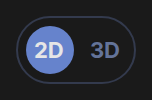
Click the switch on the top right of the work area to change between 2D and 3D.
- 2D is the plain canvas.
- 3D places a lit 3D environment behind your layers. The first time, it may take a moment to load.
With nothing selected in 3D view, the panel on the right shows 3D Environment:
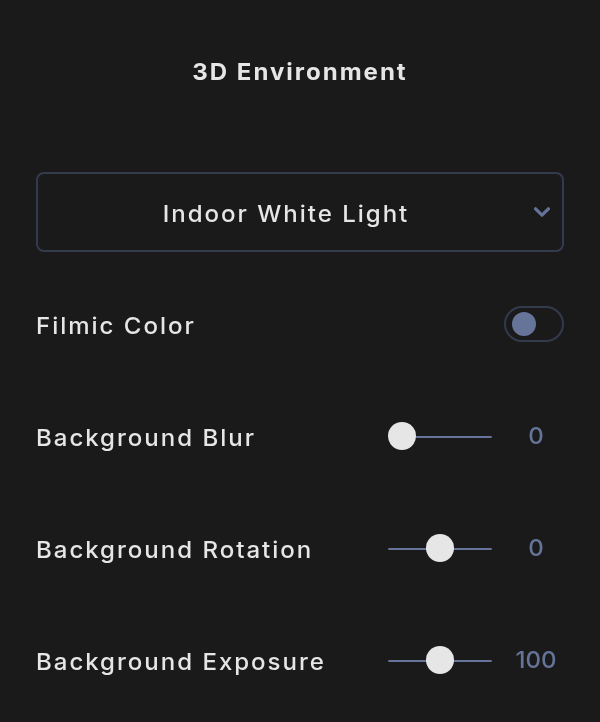
- Environment menu: Indoor White Light, Outdoor White Light, Outdoor Warm Light or Outdoor Cool Light.
- Filmic Color: a film-like color grade.
- Background Blur: 0 to 100%.
- Background Rotation: turns the environment from -180 to 180 degrees.
- Background Exposure: 0 to 200%, 100 by default.
The environment camera does not move with the mouse. Use Background Rotation to turn it.
Switching views is an undo step, and the view is saved with your project. 3D mockup layers work in both views. See 3D mockups.