
Text
The Text menu is your font library. Every font is shown written in its own typeface, so you can see it before you add it.
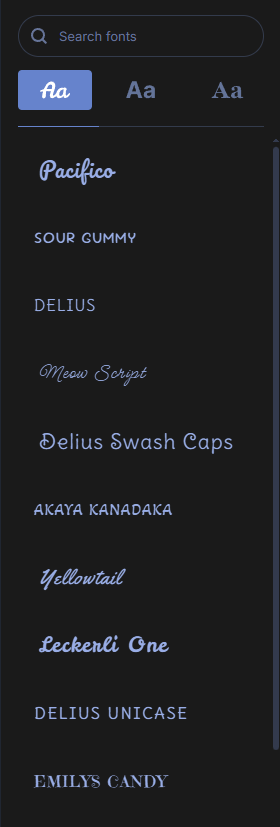
Font categories
The three tabs under the search box switch between font styles, from left to right:
- Stylish: script, handwriting and display fonts. This tab is open when the studio starts.
- Sans Serif: clean, modern fonts.
- Serif: classic fonts with serifs.
Scroll down a list to load more fonts.
Add text
Double-click a font. A new text layer is added in the middle of the canvas and selected. It shows the font's name as sample text at 48 pixels.
To write your own words, right-click the text and choose Edit text. See Text properties.
Search fonts
- Type at least two letters of a font name in Search fonts. Fonts from all three categories are listed.
- Click a font, or press Enter to use the first one. A text layer in that font is added straight away.
If nothing matches, the list shows No fonts found.
Change the font of a text layer
- Select the text layer.
- In its properties, click the button with the font's name. It changes to Select a new font and the Text menu opens.
- Double-click a font, or pick one from a search. The selected text changes to that font.
Press Escape to cancel. This works on several selected text layers at once.