
Save
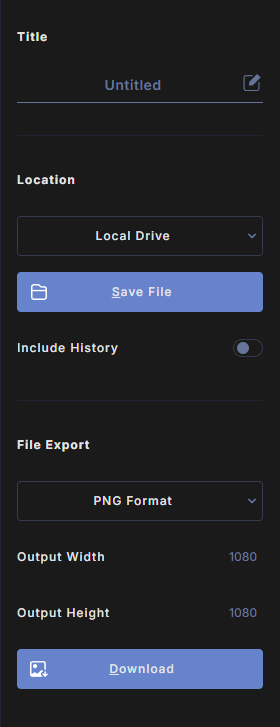
The Save menu is where you name your project, save it as a Wondr file to keep, and export it as an image or PDF.
Title
Type your project's name in Title. It is used as the file name for both Wondr files and exports, for example My poster.png.
Letters, numbers, spaces, underscores, hyphens and brackets are allowed. A title with any other character is reset to Untitled.
Save a Wondr file
Location is your computer, shown as Local Drive.
Click Save File, or use its keyboard shortcut, to download your project as a .wdr file. Your browser saves it in its usual downloads folder.
Turn on Include History first if you want the file to keep your undo steps, so you can undo and redo after you open it again. The history will add to your .wdr file size. Wondr remembers this switch in your browser, so it stays the way you left it.
See Wondr files for how to open a file again and what is saved in it.
Export an image or PDF
- Choose a format under File Export: PNG, JPEG, WEBP or PDF. Wondr remembers the format you used last.
- Check Output Width and Output Height. They start at the canvas size and keep its proportions.
- Click Download, or use its keyboard shortcut.
See Export for what each format gives you.
Other ways to save
Right-click an empty spot of the canvas and choose Save or Download.