
Canvas properties
The Canvas Properties panel controls the size and background of your design. It shows on the right whenever nothing is selected and the view is in 2D.
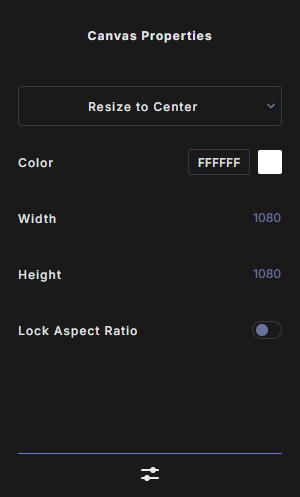
To get back to it, click an empty spot of the work area. That clears the selection.
Width and height
Type a size in pixels in Width and Height, then press Enter or click outside the box. Each side can be from 2 to 4096 pixels. A new canvas is 1080 × 1080.
- You can type basic math, for example
1080 * 2or(1920 / 2). 50%sets the box to half of its current value.- You can also use
emorremunits as part of basic math, for example1080 + 2remor50% - 1em. - Use the Up and Down arrow keys to change the value by 1.
A size change is a single undo step. It also resets Output Width and Output Height in the Save menu to the new size. See Export.
Lock Aspect Ratio
Turn on Lock Aspect Ratio to keep the shape of the canvas. When you change one side, the other follows at the same ratio.
Resize direction
The menu at the top of the panel, Resize to Center by default, decides where the space is added or removed when you change the size. Your layers keep their place against the side that stays put.
- Resize to Center: the change is shared equally on both sides.
- Resize to Left / Right / Top / Bottom: space is added or removed on that side.
- Resize to Top Left, Top Right, Bottom Left, Bottom Right: space changes on both sides of that corner.
Pattern layers always refit to the new size.
Background color
Next to Color, type a hex value such as FFFFFF, or click the swatch to open the color picker. The canvas background can be a solid color or a linear or radial gradient. See Basic properties for how the color picker works.
In 3D view
In 3D view this panel is replaced by 3D Environment. Switch back to 2D to change the canvas size. See Zoom, 2D and 3D view.