
Elements
The Elements menu holds everything you can add besides text and patterns: shapes, lines, icons, graphics, stock photos and 3D mockup models.
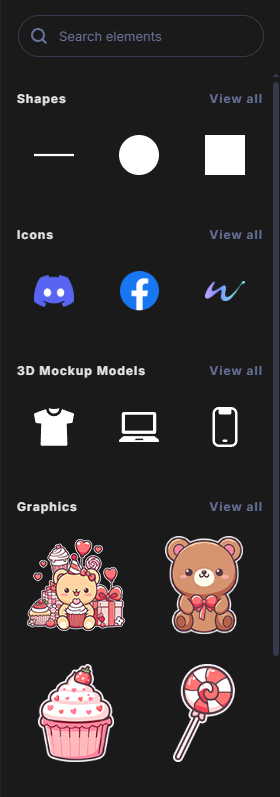
Browse elements
Click Elements in the toolbar. The menu shows each category with a few items, such as Shapes, Icons, 3D Mockup Models, Graphics and Images.
- Click View all next to a category to see everything in it. More load as you scroll.
- Click Go back to return to the overview.
Search elements
- Type at least two letters in Search elements.
- Pick a suggestion, or press Enter to use the first one.
- Click the × to clear the search.
If no suggestion matches, your own word is offered, so you can still search the stock photos for it.
Add an element
Double-click an item. It is added in the middle of the canvas and selected. Photos and graphics show a short loading cover while they download.
What each kind becomes
- Shapes become shape layers with a fill and a stroke. See Vectors and shapes.
- Lines become line layers with their own heads and stroke. See Lines.
- Icons become vector layers whose parts you can recolor. See Vectors and shapes.
- Graphics and Images become image layers, sized to half of the canvas's shorter side. See Image properties.
- 3D Mockup Models become 3D mockup layers you can wrap your artwork onto. See 3D mockups.
Stock photos
The Images category shows free stock photos from Pexels. Search with any word to find more, or click View all and keep scrolling. Rest your pointer on a photo for a moment to see who took it.
When you add a photo, a copy is saved inside your design.
If the photos cannot load, the category shows API Unavailable. Click Retry to try again.
Stock photos follow the Pexels license.