
The studio at a glance
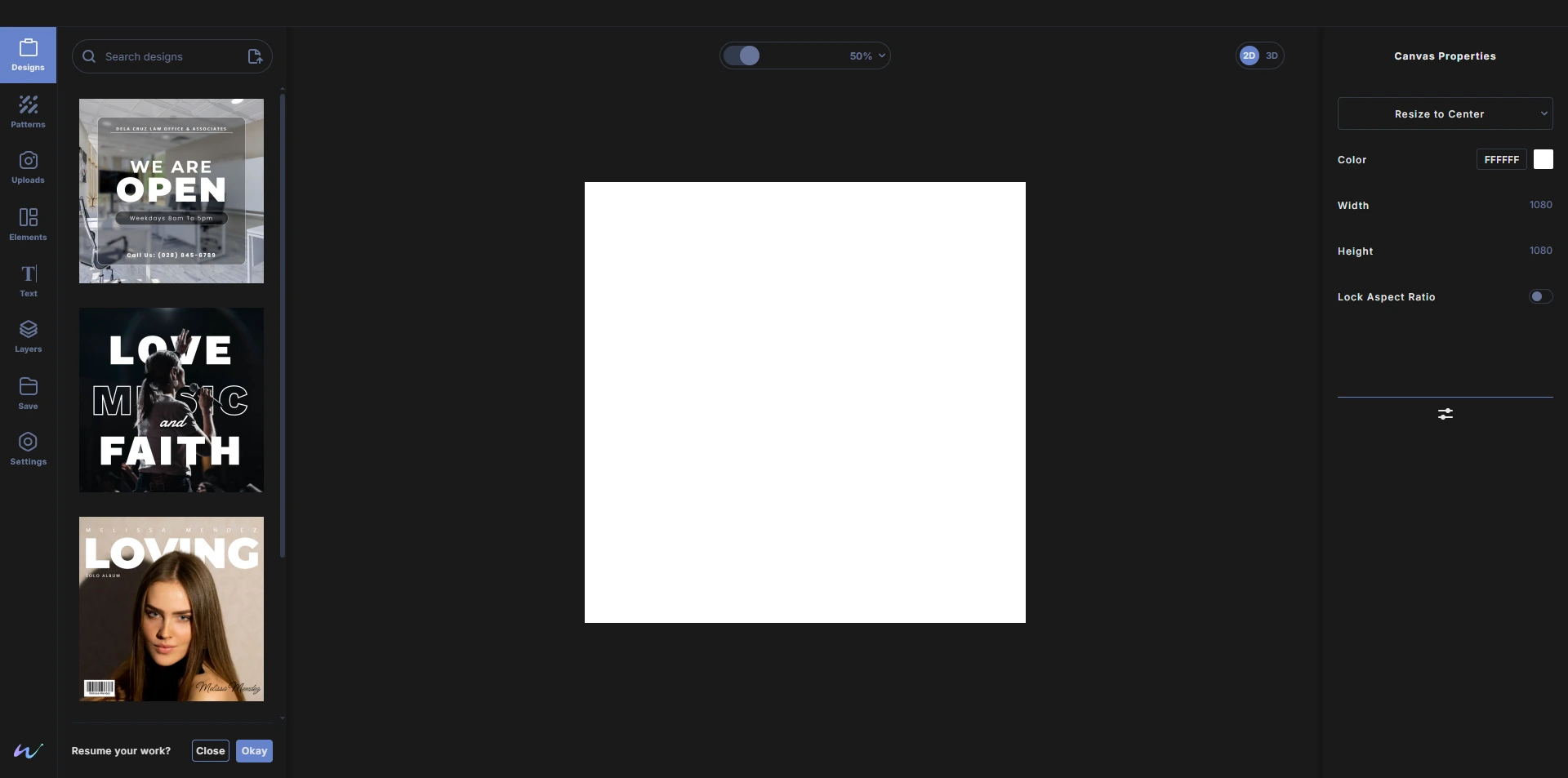
The studio has four parts, from left to right: the toolbar, the menu panel it opens, the work area with your canvas, and the properties panel.
The toolbar
The narrow strip on the far left holds every menu. From top to bottom:
- Designs: templates, opening Wondr files, and resuming autosaved work. See Designs.
- Patterns: ready-made patterns that fill the canvas and that you can restyle. See Patterns.
- Uploads: your own images and SVG files. See Uploads.
- Elements: shapes, lines, icons, graphics, stock photos and 3D mockup models. See Elements.
- Text: the font library. See Text.
- Layers: every layer in your design. See Layers.
- Save: save a Wondr file and export images or PDF. See Save.
- Settings: snapping, selection colors and your account. See Settings.
- The Wondr logo at the bottom shows a thank-you note and the support email.
Each tool shows its name under the icon.
The menu panel
Clicking a tool slides its menu open next to the toolbar and highlights the tool. Click another tool to switch menus. To close the panel, press Escape when nothing else is open. Clicking the active tool again keeps the panel open.
The work area
Your canvas sits in the middle. Above it, in the center, are the zoom controls: a slider and a percent menu. On the top right is the 2D / 3D switch.
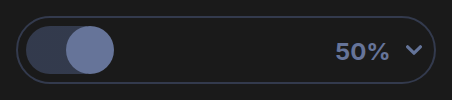
When the zoomed canvas is bigger than the view, scrollbars appear so you can scroll around it. See Zoom, 2D and 3D view.
The properties panel
The panel on the right always shows the settings for what you have selected:
- Nothing selected, 2D view: Canvas Properties, for the canvas size and background. See Canvas properties.
- Nothing selected, 3D view: 3D Environment, for the lighting backdrop.
- A layer selected: that layer's properties. The icons along the bottom of the panel switch between its tabs, such as Basic, Color and Style. See Basic properties.
Right-click menus
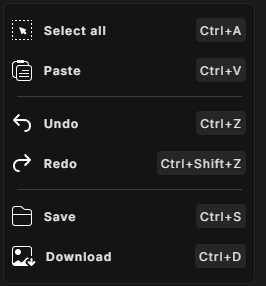
Right-click an empty spot or a layer to open a menu with actions like Select all, Clone, Undo, Redo, Save and Download. The shortcut for each action is shown on the right. See Selecting and moving.
Undo and redo
Undo and redo are in the right-click menu, and each has a keyboard shortcut.