
Layers
Everything you add to the canvas is a layer. The Layers menu lists them all, with the front-most layer at the top.
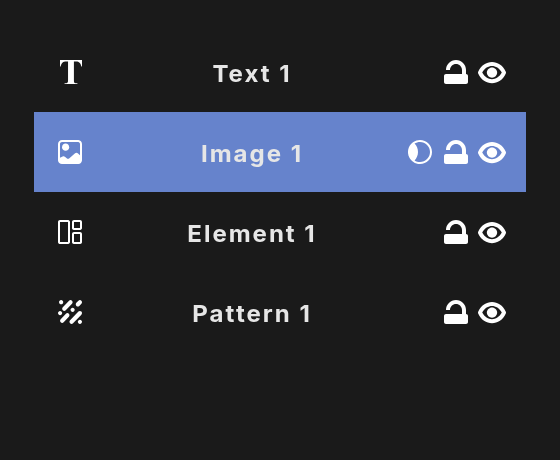
Read the list
Each row shows, from left to right:
- An icon for the layer type: text, image, element, vector or pattern.
- The layer's name.
- On image layers, the mask button.
- The lock button.
- The eye button, to show or hide the layer.
New layers are added at the top of the list and get a name with a number, such as Text 1, Image 2 or Element 3.
Select layers
- Click a row to select that layer and show its properties.
- Shift + click selects every row between the first one you clicked and this one.
- To add or remove rows one at a time, or to select them all, see Keyboard shortcuts.
This is the way to select pattern layers and locked layers, which you cannot click on the canvas.
Rename a layer
- Double-click the layer's name.
- Type a new name. Letters, numbers and spaces are allowed.
- Press Enter or click away.
An empty name goes back to the old one.
Change the stacking order
- Press and hold on a row for a moment.
- Drag it up or down. A line shows where it will land.
- Release. All the selected rows move there together.
You can also right-click a layer on the canvas and use Position layer to move it to the top, up, down or to the bottom.
Show and hide
Click the eye to hide a layer, and again to show it. A hidden layer keeps its place and is left out of your exports. While it is selected, its outline still shows on the canvas so you know where it is.
To hide or show all selected layers at once, use the keyboard shortcut.
Lock
Click the lock to lock a layer. A locked layer cannot be selected, moved or resized on the canvas, so you cannot nudge it by accident. You can still select it here in the Layers menu. Click the lock again to unlock it.
Mask an image into a shape
You can show an image through the outline of a shape, like a photo inside a circle.
- Put the image layer directly above a shape layer in the list.
- Click the image's mask button.
The image now shows only inside the shape. The shape is the container: flipping, rotating or restyling the shape does not change the image inside it. Your image keeps all of its own settings, including flip, opacity, filters and its stroke, glow or shadow.
Click the mask button again to unmask the image.
Blend modes
Blend modes are set in each layer's properties, not in this menu. See Basic properties.
Delete layers
Select one or more layers and use the delete keyboard shortcut, or right-click a layer on the canvas and choose Delete. Undo brings it back.