
Basic properties
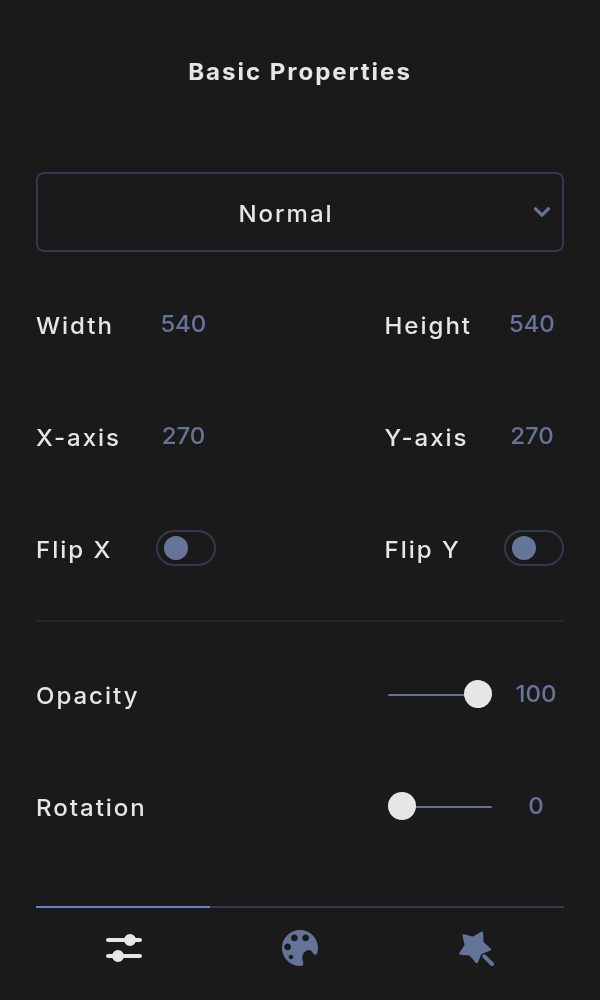
When you select a layer, the panel on the right shows its properties. The first tab, Basic Properties, is the same for images, vectors, shapes, lines, text and 3D mockups.
Switch between tabs
The icons along the bottom of the panel switch between its tabs. The title at the top of the panel tells you which tab you are on, for example Basic Properties, Image Color or Text Style.
Blend mode
The menu at the top, Normal by default, sets how the layer mixes with the layers under it: Normal, Lighten, Screen, Overlay, Soft-light, Darken, Multiply, Difference or Exclusion.
Size and position
- Width and Height set the layer's size in pixels. The top-left corner stays where it is.
- X-axis and Y-axis set the position of the layer's top-left corner on the canvas.
Flip, opacity and rotation
- Flip X mirrors the layer from left to right. Flip Y mirrors it from top to bottom.
- Opacity goes from 0 (invisible) to 100.
- Rotation goes from 0 to 359 degrees.
Typing values
Every number box understands more than plain numbers:
- Basic math:
200 + 50,1080 / 2or(1920 - 540) / 2. The result is rounded to a whole number. - Percent for size and position:
50%in Width or X-axis means half of the canvas width. In Height or Y-axis it means half of the canvas height. - Percent elsewhere: in a box with a fixed range, such as Opacity,
%is a share of its maximum. - Units: pixel boxes accept
px,emandrem(16 pixels each). Angle boxes acceptdegor°. - Arrow keys: Up and Down change the value by 1.
Press Enter or click outside the box to apply it. If what you typed cannot be read, the box goes back to its old value.
Editing several layers at once
With several layers selected, a change in the panel is applied to all of them. The panel shows the values of the layer you selected last.
The color picker
Click any color swatch to open the color picker. You can also type a six-digit hex value or a color name such as aliceblue into the box next to the swatch.
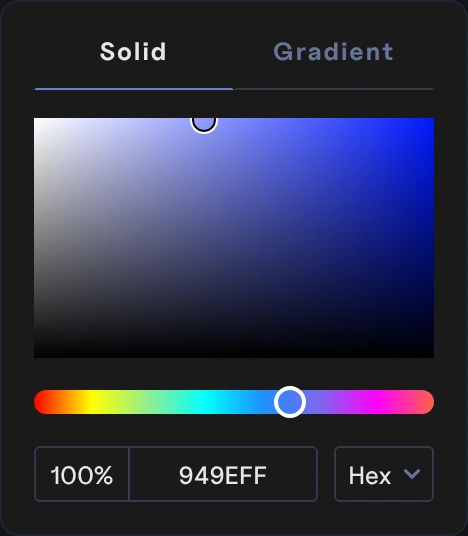
- Drag in the large square to choose the shade, and along the bar to choose the hue.
- The box on the bottom left sets the transparency, from 0% to 100%.
- Click Hex to switch the value box between Hex, RGB and HSB.
- Eyedropper: while the picker is open, move the pointer over the canvas. A magnifier shows the color under it. Click to pick that color.
Click Gradient at the top to make a gradient:
- Drag the markers on the gradient bar to move the color stops.
- Click + next to Stops to add a stop, up to seven. Click the minus button on a row to remove one. A gradient needs at least two stops.
- Click Linear to switch to Radial. A linear gradient can be rotated from 0 to 360 degrees.
- Click Solid to go back to a single color.
Some colors are solid only, such as glows, shadows, lines and 3D model colors. Their picker has no Gradient tab.
Press Escape or click the swatch again to close the picker.