
Lines
Lines come from the Shapes category of the Elements menu. A selected line has three tabs: Basic Properties, Line Properties and Line Style.
Line Properties
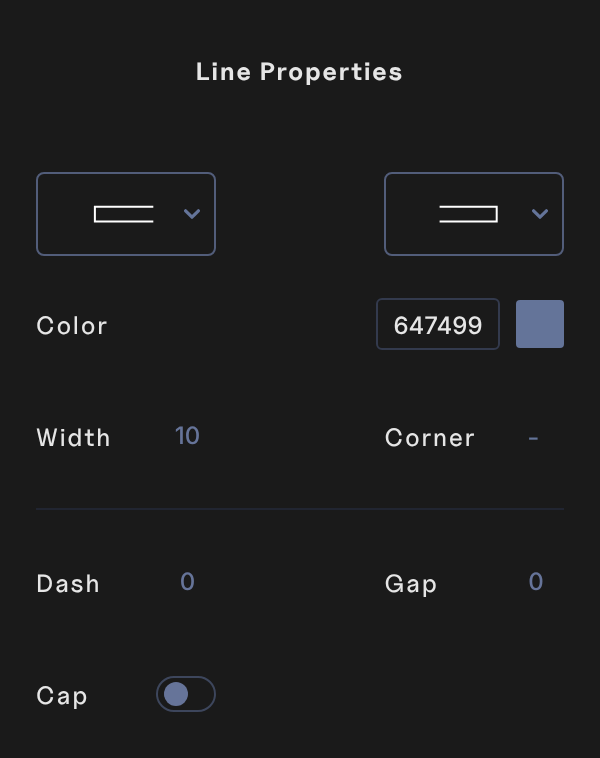
- Heads: the two menus at the top set the start and the end of the line. Choose a flat or round end, or an arrow, circle, diamond, square or triangle, each as an outline or filled.
- Color: a solid color for the line and its heads.
- Width: the line's thickness. The heads grow with it.
- Dash and Gap: make a dashed line. A Dash of 0 gives a solid line.
- Cap: rounds the ends of the line and of each dash.
Corner shows a dash because lines have no corners.
Line Style
Pick Glow or Shadow in Choose a Style, or Remove to take it off. They work like the image styles. See Image properties.
Move, resize and rotate a line
- A selected line has a handle at each end. Drag one to make the line longer or shorter.
- To angle the line, use Rotation in Basic properties, or hover just past one of its ends until the cursor curves, then drag.