
Vectors and shapes
Wondr has two kinds of vector layers:
- Shapes from the Elements menu, such as squares, circles and stars. They have one fill and one stroke you can style.
- Vectors, which are your uploaded SVG files and the icons from the Elements menu. You can recolor each of their parts.
Shape color
A selected shape has three tabs: Basic Properties, Element Color and Element Style. See Basic properties for the first one.
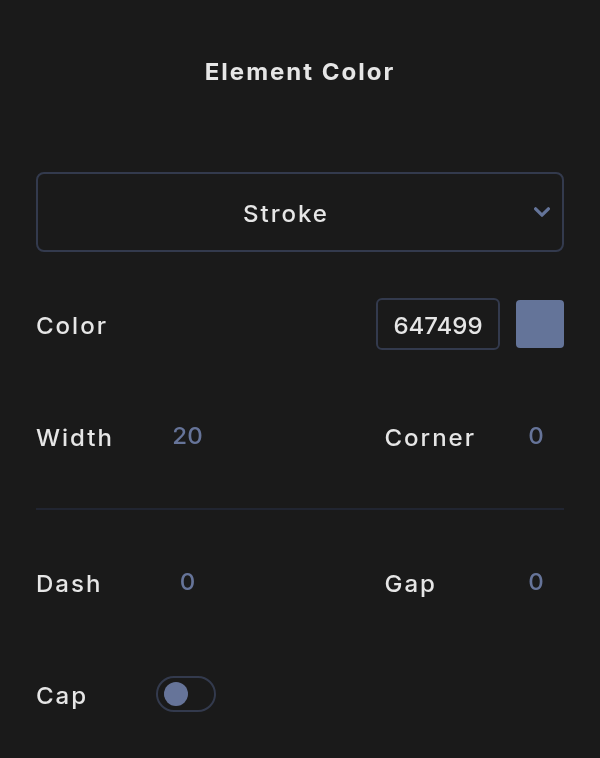
In Element Color, the menu at the top switches between Stroke and Fill.
Stroke:
- Color: solid or gradient.
- Width: the stroke thickness. The stroke is drawn on the outside of the shape, so the shape keeps its size.
- Corner: rounds the corners. On a rectangle the largest value makes a pill.
- Dash and Gap: make a dashed stroke. A Dash of 0 gives a solid stroke.
- Cap: rounds the ends of each dash.
Fill: set the Fill Color, solid or gradient.
Shape style
In Element Style, pick Glow or Shadow in Choose a Style, or Remove to take it off. They work like the image styles. See Image properties.
Use a shape as a mask
A shape can hold an image, like a photo inside a circle. Put the image directly above the shape in the Layers menu and click the image's mask button. While an image is masked into it, the shape's fill is replaced by the image, and its stroke still shows around it.
Choose a part of a vector
A selected vector has three tabs: Basic Properties, Vector Paths and Vector Color.
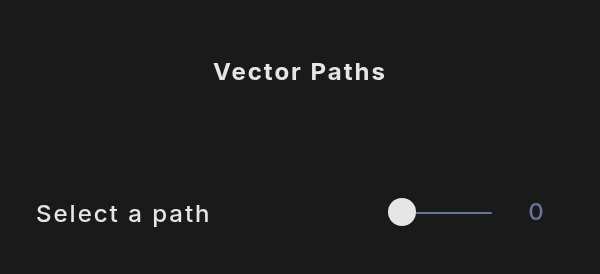
- Open Vector Paths.
- Move Select a path to choose a part of the drawing. At 0 the whole vector is shown. At any other number, the other parts are dimmed in the preview so you can see which one you picked.
Recolor a part of a vector
Open Vector Color. Depending on the part, the menu offers Stroke, Fill or both. Set the Color or Fill Color, solid or gradient. Until a part is chosen, the tab says Select a path to edit.