
Uploads
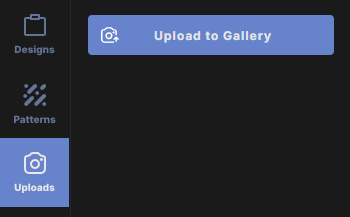
The Uploads menu is the gallery for your own files. Upload rasterize image formats and SVG artwork, then place them on the canvas as often as you like.
Supported files
PNG, JPEG, GIF, WEBP, AVIF and SVG. You can upload several files at once.
Upload files
There are three ways to bring files in:
- Upload to Gallery: click the button at the top of the menu and choose one or more files. They are added to the gallery only.
- Drag onto the gallery: drop files on the Uploads menu. They are added to the gallery only.
- Drag onto the canvas: drop files on the canvas. They are added to the gallery and placed on the canvas.
You can also paste an image with the paste keyboard shortcut. It is added to the gallery and placed on the canvas.
New uploads appear at the top of the gallery.
Add an upload to the canvas
Double-click a picture in the gallery. A photo becomes an Image layer, sized to half of the canvas's shorter side. An SVG becomes a Vector layer whose parts you can recolor. See Image properties and Vectors and shapes.
Select uploads
- Click a picture to select it.
- Shift + click selects a range.
- To add or remove pictures one at a time, or to select them all, see Keyboard shortcuts.
Swap the picture in an image layer
- Select an image layer on the canvas.
- In its properties, click the button with the image's name. It changes to Select a new image and the Uploads menu opens.
- Click a picture in the gallery. It replaces the picture in the layer, which keeps its size and position.
Press Escape to cancel.
Delete uploads
Select one or more pictures and use the delete keyboard shortcut.
Where uploads are kept
Your uploads are stored inside the design you are working on, not in a shared library. They are saved with your autosave and inside your Wondr files, so they come back when you open that design again.