
Text properties
A selected text layer has three tabs: Basic Properties, Text Format and Text Style. To change the words themselves, open the text editor.
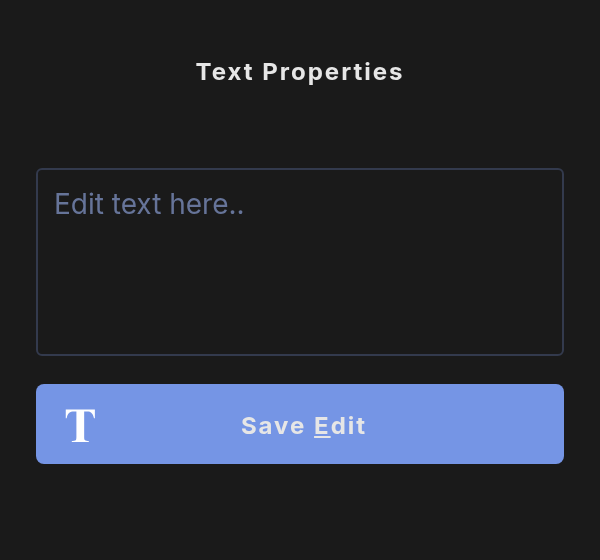
Edit the words
- Select the text layer.
- Right-click it and choose Edit text, or use its keyboard shortcut.
- Type in the box. Press Enter for a new line.
- Click Save Edit or press Escape. Clicking somewhere else also saves.
Below the editor you can add Emojis and Symbols. Pick a tab, browse the categories or use Search, then click one to add it to your text.
Text Format
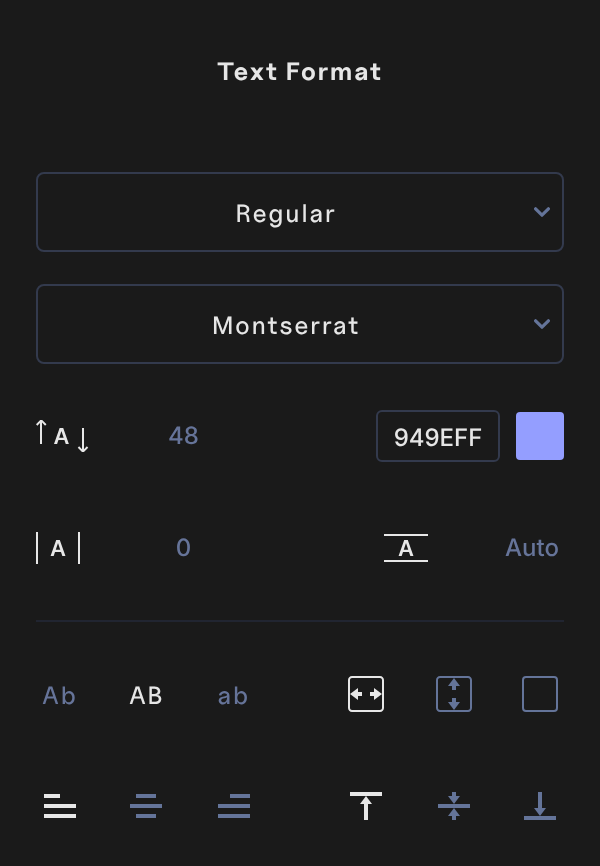
From top to bottom:
- Weight: the menu at the top lists only the weights and italics the font has, from Thin to Black.
- Font: the button below shows the font's name. Click it to change the font. It reads Select a new font, and the Text menu opens. Double-click a font, pick one from a search, or click another text layer on the canvas to copy its font. See Text.
- Size: the box next to the arrows icon sets the font size in pixels. New text starts at 48.
- Color: the hex box and swatch beside the size. Text can be a solid color or a gradient.
- Letter spacing: the box next to the spaced A icon.
- Line height: the box showing Auto. Type
12for a line height of 1.2,15for 1.5, and so on. Clear the box to go back to Auto.
Then, in the bottom rows:
- Case: Ab capitalizes each word, AB makes everything uppercase, ab lowercase. Click the active button again to turn it off.
- Box size: Auto Width keeps one line and grows sideways. Auto Height wraps the words to the box width and grows downward. Fixed Size wraps the words and keeps the box size.
- Alignment: left, center or right, and top, middle or bottom inside the box.
Styling applies to the whole text layer. To mix styles, use separate text layers.
Text Style
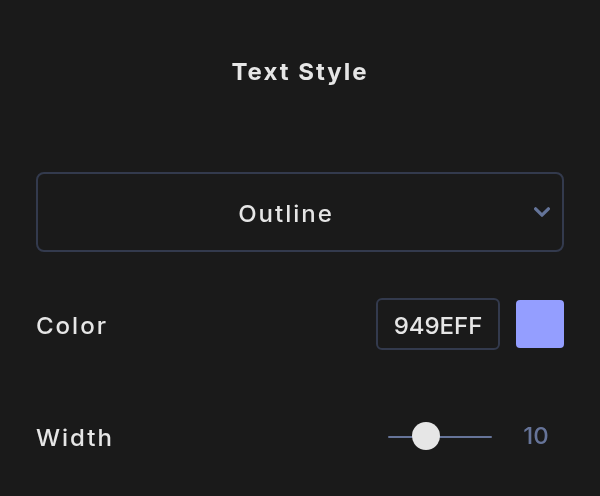
Pick a style in Choose a Style. A text layer has one style at a time, and Remove takes it off.
- Outline: a stroke around the letters. Set its Color (solid or gradient) and Width, from 1 to 30.
- Glow: a soft light around the letters. Set its Color and Spread, from 0 to 100.
- Shadow: a shadow behind the letters. Set its Color, Distance, Spread and Rotation. At a rotation of 0 the shadow falls straight down.