
Selecting and moving
Most work in Wondr starts with a selection. Selected layers show a box with handles, and the panel on the right shows their properties.
Select layers
- Click a layer to select it. A click always picks the layer that is on top at that spot.
- Drag on an empty spot to draw a selection box. Every layer the box touches is selected, even partly.
- Click an empty spot of the work area to clear the selection.
- To add or remove layers one at a time, or to select everything, see Keyboard shortcuts.
Locked and hidden layers are skipped by the selection box.
Move
- Drag a selected layer, or drag inside the box of a group selection.
- Press the arrow keys to nudge the selection by 2 pixels at a time.
- For an exact spot, type values in X-axis and Y-axis in Basic properties.
Resize
- Drag one of the handles on the corners and edges.
- Hold Shift while dragging to keep the proportions.
- A selected line has one handle at each end.
Resizing a text box switches it to a fixed size. On very small layers some handles hide. Zoom in to bring them back.
Rotate
Hover just outside a corner handle until the cursor becomes a curved arrow, then drag. Hold Shift to rotate in 15 degree steps. For an exact angle, use Rotation in Basic properties.
Groups move, resize and rotate together.
Snapping
Turn on Snapping in Settings to snap layers to the edges, centers and middles of other layers and to equal gaps between them. Distance numbers show while you drag. Snap Sensitivity sets how close a layer has to be before it snaps.
Lock a layer
Click the lock icon on the layer's row in the Layers menu. A locked layer cannot be clicked, boxed or nudged on the canvas, but you can still select it from the Layers menu.
Right-click menus
Right-click an empty spot for Select all, Paste, Undo, Redo, Save and Download.
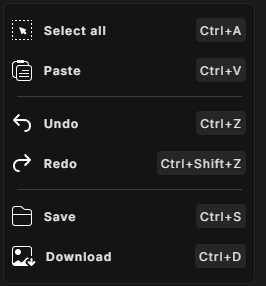
Right-click a layer for actions on it. Which items show depends on the layer and on how many layers are selected:
- Select all or Deselect all.
- Clone makes a copy just above the original.
- Remove background with Soft edge or Hard edge, for a single image. See Image properties.
- Edit text for text.
- Undo and Redo.
- Position layer: Move to top, Move up, Move down or Move to bottom.
- Delete.
Each item shows its keyboard shortcut on the right. See Keyboard shortcuts.
Paste pastes an image from your clipboard. If your browser blocks clipboard access, use the paste keyboard shortcut instead.